Purpose
When a vendor submits many invoices for the same project in the same billing period (5, 10, 20 or more), payors have had to request, sign, and track one lien waiver per invoice. That's a lot of paperwork, and documents can get lost in the shuffle.
Group Payables lets you link a single lien waiver to many invoices. When the setting is on for a project, payables imported from Procore, QuickBooks Online, or a CSV file are automatically grouped by project, vendor, and billing period into a single payable. You can then collect one waiver for the summed total of the group and make a single payment, instead of one waiver per invoice.
Key Features
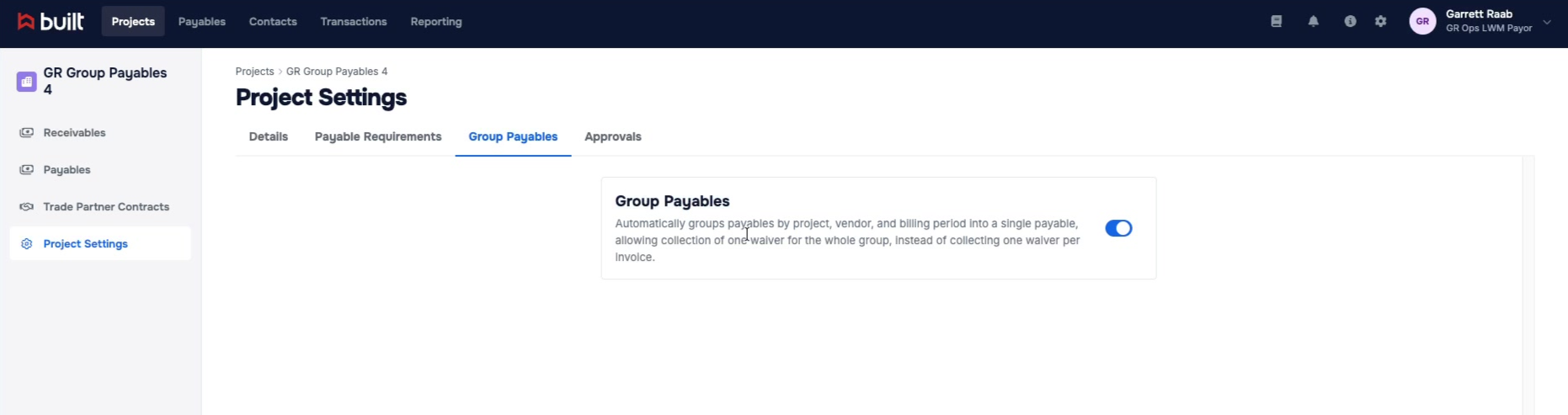
Per-project setting: Turn on Group Payables in Project Settings. It's off by default and set project by project.
Automatic grouping at import: Invoices with the same project, vendor, and billing period are combined into one grouped payable when they're imported through the Procore integration, the QuickBooks Online integration, or CSV import.
Expandable grouped rows: The grouped payable shows the summed total. Expand it to see each invoice in the group, with its amount, invoice date, billing period, and due date.
One waiver for the group: Requesting a waiver on a grouped payable generates a single waiver for the summed total of all invoices in the group.
One payment for the group: A grouped payable can be paid with a single payment. Requesting waivers and making payments work the same way as for any other payable.
Target Users
Project accountants at payors: Especially residential payors, who commonly receive many invoices per month from the same vendor. Grouping means far fewer waivers to request, track, and follow up on.
Vendors: Sign one waiver for a group of invoices instead of one waiver per invoice.
Payors who typically receive one invoice per vendor per month may see less benefit.
How It Works
Open the project and select Project Settings. On the Group Payables tab, turn on the Group Payables toggle.
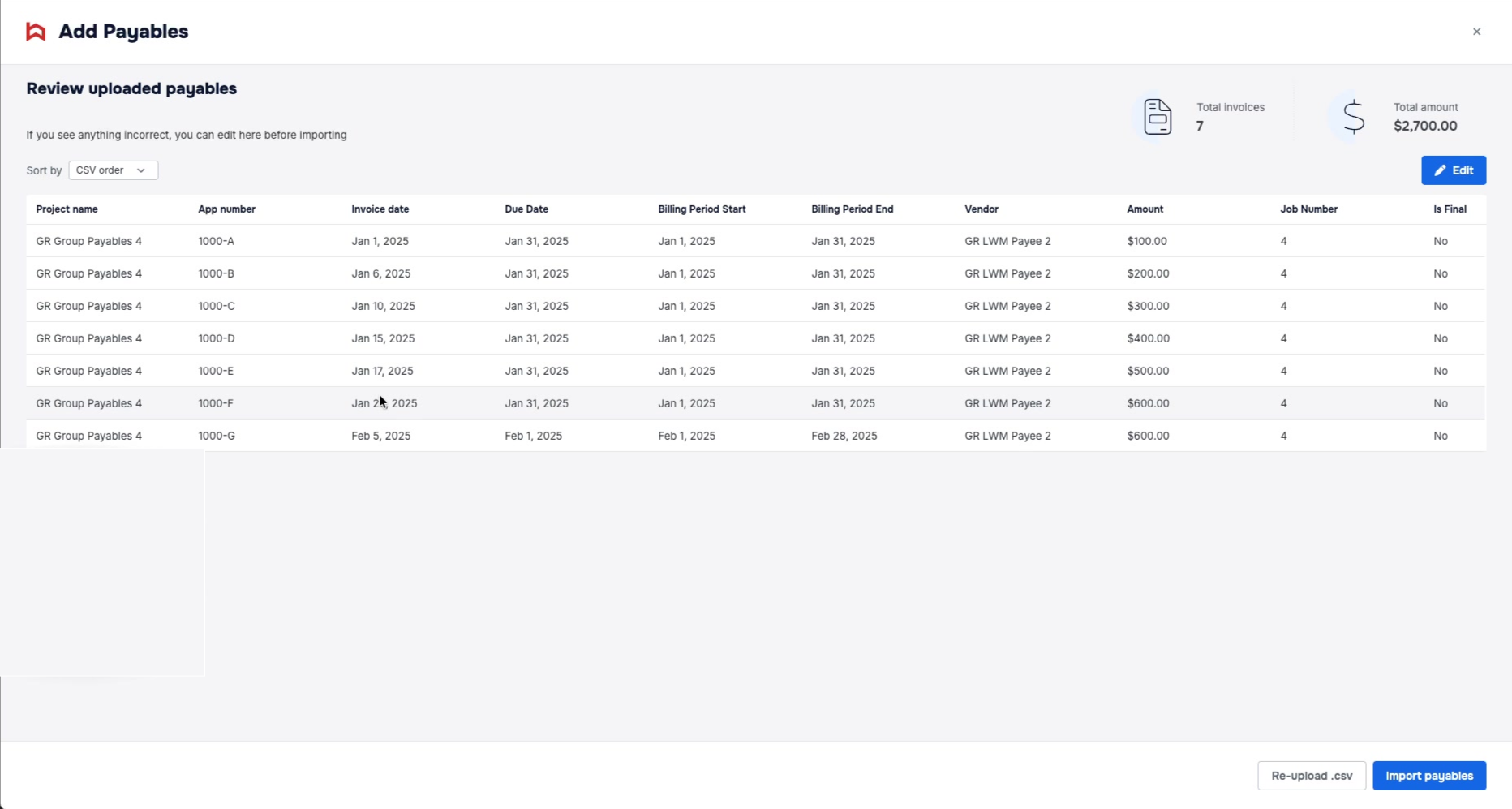
Import payables through the Procore integration, the QuickBooks Online integration, or CSV import. For a CSV import, review the uploaded payables and select Import payables.
Go to the project's Payables page. Invoices with the same project, vendor, and billing period now appear as one grouped row. The grouped row lists each invoice ID and shows the summed total in Payment Due.
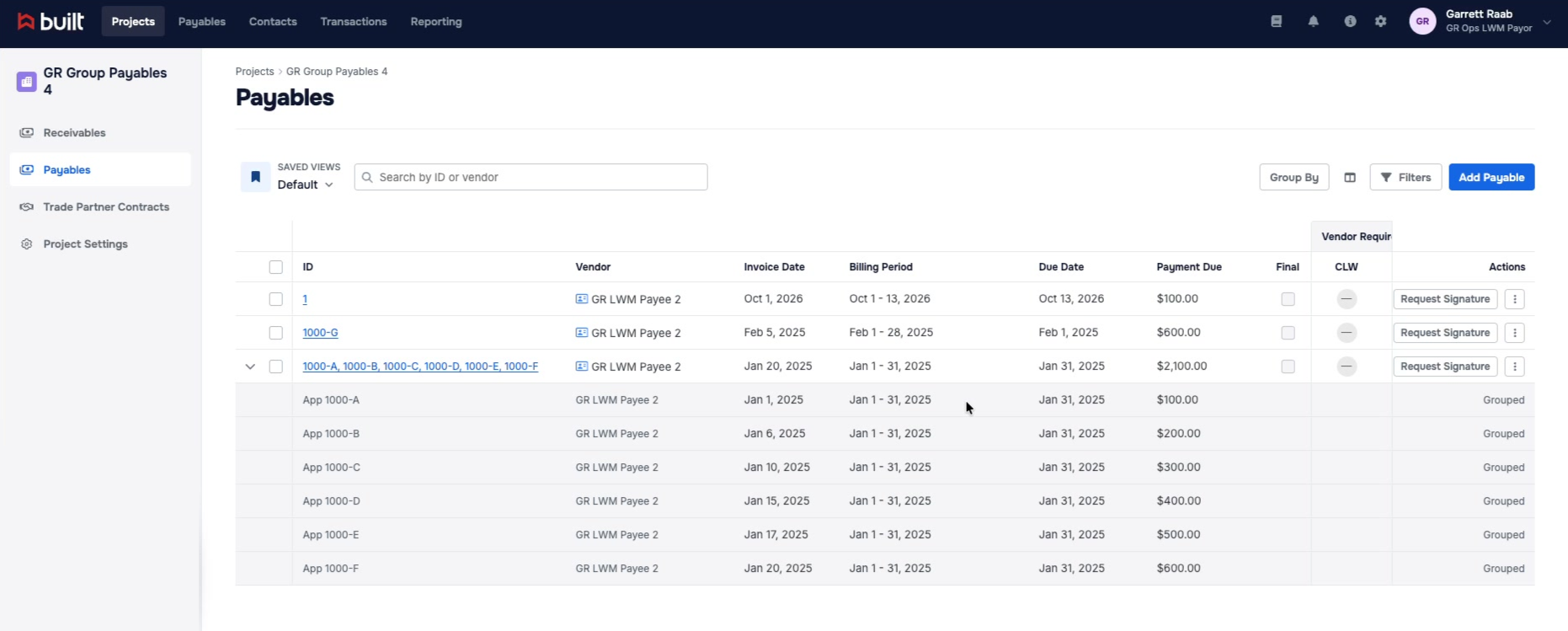
Expand the grouped row to see the individual invoices in the group, including each invoice's amount, invoice date, billing period, and due date. Each invoice in the group is marked Grouped.
Select Request Signature on the grouped row. A single waiver is generated for the summed total of the group.
To review the waiver, open the grouped payable and select Download. The waiver shows the summed total for the group.
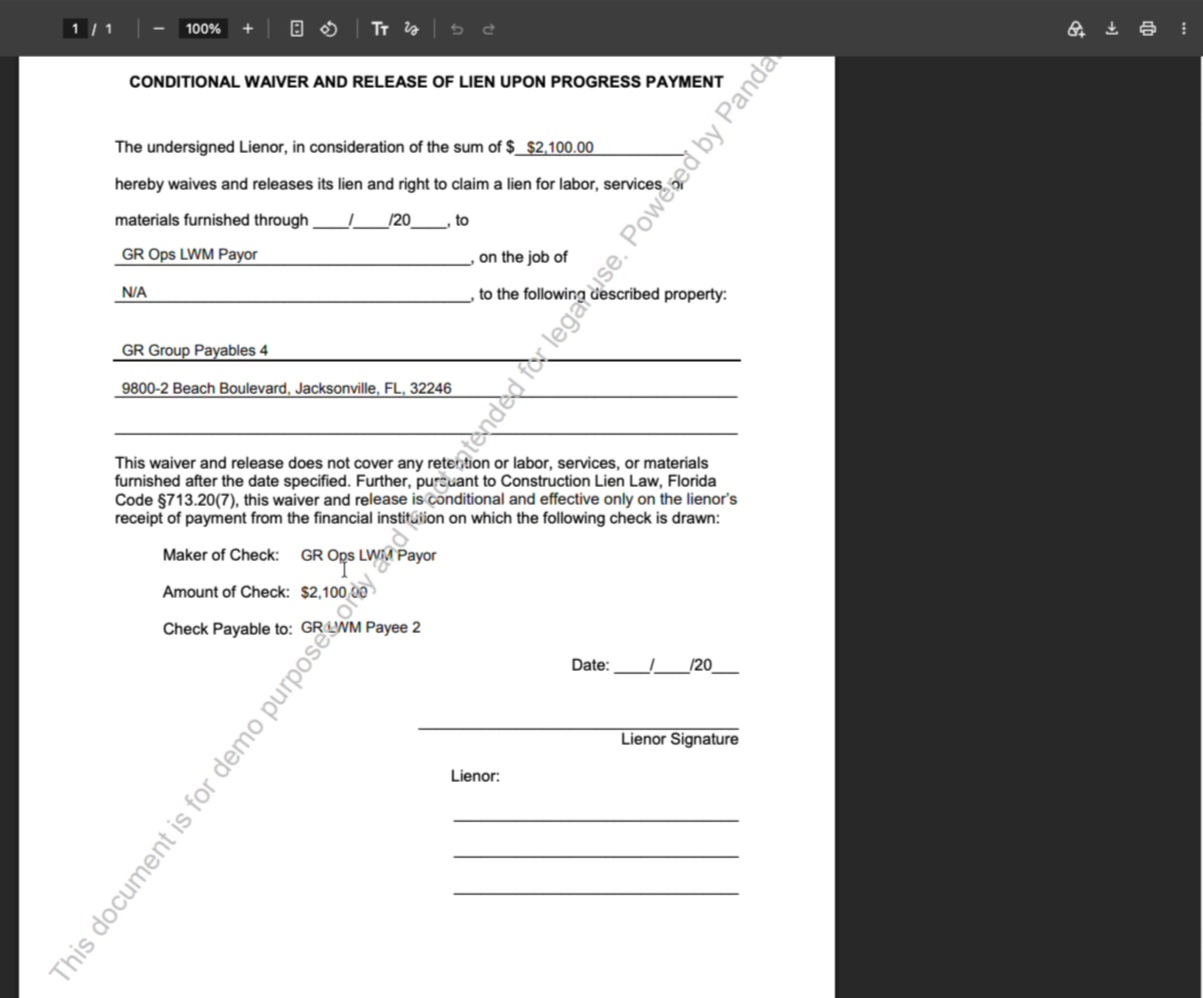
Example:
A CSV file has seven invoices from the same vendor on the same project. Six have a January billing period and one has a February billing period. After import, the six January invoices become one grouped payable for their $2,100.00 total, and the February invoice stays its own payable.
Benefits
Far fewer lien waivers to request, collect, and track per vendor per billing period.
Vendors sign one document per group instead of one per invoice.
One payment for the group instead of many.
Less paperwork to keep track of, so fewer documents get lost.
Best Practices
Turn the setting on before you import. Group Payables applies to new imports only. Payables already on the project aren't regrouped when you turn it on.
Make sure billing periods are filled in at the source. The billing period used for grouping comes directly from the source record (CSV, Procore, or QuickBooks Online), not from the invoice date. An invoice with no billing period imports as its own payable, even when the setting is on.
Import a billing period's invoices together. A new invoice that arrives later for the same project, vendor, and billing period starts a new, separate group. It isn't added to the existing group, so a vendor can end up with more than one group in the same billing period.
Check your data before importing. Invoices inside a group can't be edited or removed individually. To change a group, delete the whole group and import it again.
Note:
A grouped payable can't be deleted once a payment exists against it. This is the same rule that applies to any payable.
FAQ
Can I group payables manually?
No. Grouping happens automatically when payables are imported through the Procore integration, the QuickBooks Online integration, or CSV import. There's no way to manually group or ungroup payables in the app.
What happens to payables already on the project when I turn on Group Payables?
Nothing. The setting affects new imports only. Existing payables aren't regrouped.
Can I group invoices across projects?
No. Invoices are grouped only when they share the same project, vendor, and billing period.
Can I make partial payments or request partial waivers on a group?
Yes. A grouped payable works like any other payable, so partial waivers and partial payments can be made against it.
Can I request one conditional waiver per invoice and then one unconditional waiver for the group total?
No. When Group Payables is on, invoices are combined into one payable at import, so waivers are requested on the group as a whole.
How do I change an invoice inside a group?
Invoices inside a group can't be edited or removed individually. Delete the whole group and import it again. A group can't be deleted once a payment exists against it.